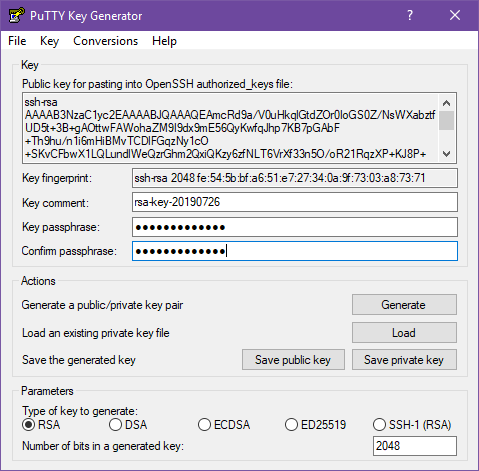
Typical SSH connection is with username and a password, without adding extra security that leaves the server open to brute force or access from anyone who can read your printed password in plaint text such as emails or a text file.
Having SSH key access to your server adds extra door/s of protection, plus instead of needing a password potential hackers now need a key and a password.
You can generate keys on your Linux server but for ease for beginners this will use windows and PuTTY Gen. PuTTY (popular SSH client) for windows can be downloaded here. In this package comes PuTTY Gen.
Search for the PuTTY Gen.exe and open it
Click generate
Wave your mouse around in the area to speed up the process
You now have your key
Create/enter a password to protect the key file
Save the public and private key in safe place with a name you can recognize. I usually do hostnamePUBLIC and hostnamePRIVATE.
Open PuTTY.exe (or any SSH terminal) and connect to your server with the usual username and password.
Create the ~/.ssh directory with
mkdir -p ~/.ssh
Then create and open ~/.ssh/authorized_keys file with
nano ~/.ssh/authorized_keys
Here you want to paste the public key output from PuTTY Gen as seen by this highlighted top part (right click select all and then copy).
Once pasted into ~/.ssh/authorized_keys do ctrl + x then y and enter to exit and save.
Close the connection
Open up PuTTY and put in your servers hostname
On the list at the left find Auth under the SSH sub menu, click it.
Where it says Private key file for authentication click browse and select your private key you just generated.
Click session at the top of the list, where is says saved session enter a name (hostname) and click save.
To connect simply find the name you just used, click load and then open.
Enter your username and the password for the key file and you will now be logged in.
It is recommended to disable the normal username password login method after you have finished this key based authentication.
A drained and empty Kennington reservoir images from a drone in early July 2024. The…
Merrimu Reservoir from drone. Click images to view larger.
Some early September spring shots from a bushwalk, It is still too early for wildflowers.
I recently needed to clone over a smaller NVMe to a 2TB SK Hynix Platinum…
If you ever needed a simple solution in Laravel to delete an entire directory and…
How to enforce only one user to register or be registered in a Laravel web…